

Ever found yourself needing to connect a new device but completely blanking on your Wi-Fi details? You’re not alone. Forgetting that key network security key after the initial setup is a common problem.
The good news is that your computer stores this information. This guide will show you exactly how to find your WiFi password on your machine. It’s easier than you think.
We have created a definitive, step-by-step resource for users. Whether you’re on Windows, macOS, or Linux, our instructions will help you locate your saved WiFi password easily. Get back to your network settings quickly and with confidence.
Understanding Network Password Fundamentals
Network passwords are key to keeping your digital world safe. They make sure only the right devices can connect to your network. This keeps your data safe and lets approved users connect easily.
What Constitutes a Network Password
A network password, or Pre-Shared Key (PSK), is a secret code. It checks if devices are allowed to join your network. This code is a mix of letters, numbers, and symbols.
This mix makes it hard for hackers to guess. It keeps your network safe from unwanted access.
Different Types of Network Security Protocols
Wireless networks use many security protocols to keep data safe. Knowing about these helps us see why passwords are important. They help protect our networks from harm.
WEP (Wired Equivalent Privacy) is old and not safe. It’s not good for today’s networks because it’s easy to hack.
WPA2 was a big step up from WEP. It has stronger encryption and better security for homes and businesses.
WPA3 is the newest standard. It’s better at stopping hackers from guessing passwords. It also keeps past data safe, even if passwords are later stolen.
Why Knowing Your Password Matters for Network Management
Knowing your network password is key for managing your network. It lets you control who can connect and troubleshoot problems.
Adding new devices is easy with the right password. Fixing connection issues also depends on the right password.
It’s also important for managing guest access. With the right password, you can give guests limited access without risking your main security.
Keeping your network safe means updating passwords regularly. Having the right administrator access helps protect against new threats.
Essential Preparations Before Checking Your Password
Before you try to find your network password, it’s important to do some groundwork. This makes the process easier and keeps your system safe. It helps avoid common problems and keeps your system working well.

Required Administrative Privileges
To see your network password, you need admin rights on your computer. Regular user accounts can’t access this info because of security rules.
Make sure your account has “Administrator” privileges on Windows. On macOS, you need to use admin credentials when asked.
If you don’t have these rights, talk to your company’s system administrator. Trying to get around these rules can break your network’s security.
Network Connection Status Verification
Make sure you’re connected to the network you want to check. Password tools only show passwords for networks you’ve joined.
Check your network settings to see if you’re connected. For Wi-Fi, make sure it says “Connected” and not just “Available”. This is key for getting the password right.
If you’re trying to access a network you used before but can’t now, check if your device remembers it. Some systems delete old network data after a while.
Security Considerations and Best Practices
Always use a secure, private device to get your password. Public computers or shared workstations are not safe for this task.
Follow important security best practices while you’re doing this. Be careful not to let anyone see your screen when you’re getting the password. This is very important.
Think about the right thing to do when getting network passwords. Only get passwords for networks you’re allowed to use. Never share passwords with people who shouldn’t have them. This keeps everyone’s security safe.
How to Check the Network Password on Your Computer Using Windows
Windows operating systems have many ways to find your WiFi password. You can use the graphical interface or command-line tools. These methods work for networks your device has connected to before.
Windows 10: Step-by-Step Instructions
Windows 10 supports both old and new ways to manage networks. You can use the Control Panel or command-line tools, depending on what you’re comfortable with.
Using Command Prompt Method
The netsh wlan command is a strong tool for viewing stored wireless profiles. It shows all your network settings, even when you’re not connected.
Here’s how to do it:
- Open Command Prompt as Administrator
- Type:
netsh wlan show profilesand press Enter - Find your network name in the list
- Type:
netsh wlan show profile name="YourNetworkName" key=clear - Look for the “Key Content” field under Security Settings
This command shows your Windows 10 wifi password in plain text. It’s great for quick access without going through many menus.
Through Network and Sharing Centre
If you like using graphical interfaces, the Network and Sharing Centre is a good choice:
- Navigate to Settings > Network & Internet > Status
- Click “Network and Sharing Centre”
- Select your wireless connection
- Click “Wireless Properties”
- Navigate to the Security tab
- Check “Show characters” to see the password
This method needs admin rights but shows your network details clearly.
Windows 11: Updated Procedures
Windows 11 makes network management easier with its new Settings app. It also keeps support for command tools. The new interface is easier for most users.
Settings App Approach
The Windows 11 network settings interface is the simplest way:
- Open Settings (Win + I)
- Select Network & internet from the sidebar
- Click Wi-Fi then Hardware properties
- Select “View network security key”
- Enter your Windows password if asked
This method shows Microsoft’s effort to make system settings easier while keeping security high.
PowerShell Alternative
PowerShell is great for advanced users who need more control over network tasks. The PowerShell wifi key method is similar to Command Prompt but offers more scripting options.
Here’s what to do:
(Get-WmiObject -Class Win32_NetworkAdapterConfiguration -Filter "IPEnabled=true").Description
Then, use:
netsh wlan show profile name="NetworkName" key=clear
PowerShell gives the same security info as Command Prompt but in a more powerful environment.
Accessing WiFi Passwords on macOS Systems
Apple’s macOS makes it easy to find saved WiFi passwords. It uses built-in security to keep your system safe. You can use a graphical interface or the command line, depending on what you prefer.
Keychain Access Utility Method
The Keychain Access app is macOS’s password manager. It keeps all your network and sensitive info safe. Finding your Mac wifi password here is straightforward.
Locating Specific Network Passwords
Start by opening Keychain Access. You can do this through Spotlight or the Applications folder. Look for “Passwords” in the left sidebar.
Use the search field to find your network by name. Double-click it and check “Show password.” You’ll need your admin password to see your Mac wifi password.
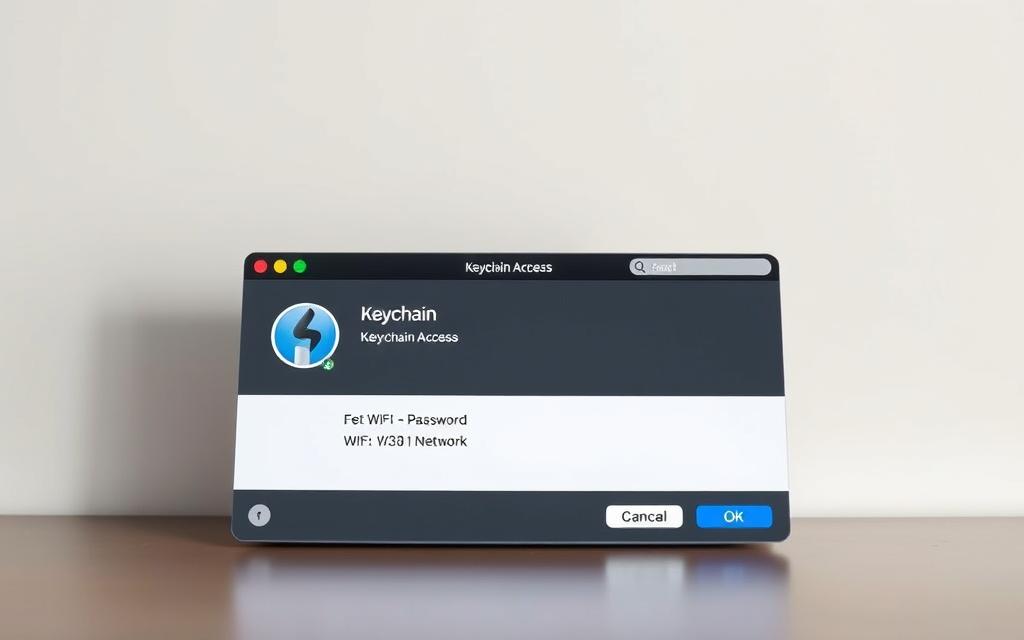
You can also export your network passwords from Keychain Access. Right-click your network and choose “Export.” Pick a safe place and use a strong password for the file.
This creates a .keychain file with your encrypted passwords. Remember, you’ll need the export password to open it. Keep this file safe and separate from your computer.
Terminal Command Alternatives
If you’re okay with using the command line, Terminal is a quick option. It’s great for tech-savvy users and can be automated. The macOS Terminal security find-generic-password command is very precise.
Using Security Command-line Tools
Open Terminal from the Applications folder or Spotlight. Type the following command, replacing “NETWORK_NAME” with your network’s actual name:
security find-generic-password -wa “NETWORK_NAME”
Hit Enter and enter your system password when asked. Your Mac wifi password will show in the Terminal. This method works on all recent macOS versions.
To keep your Terminal history safe, clear it after getting your password. You can also use | pbcopy to store it in your clipboard without showing it on screen.
Linux Distribution Methods for Password Retrieval
Linux offers many ways to find wifi passwords, unlike other systems. You can use graphical interfaces or terminal commands. The choice depends on your Linux version and desktop. Most systems make it easy to find your wifi password.
GNOME Network Manager Approach
If you use GNOME, the Network Manager is the easiest way. Go to your system settings and find Network or Wi-Fi. Click the gear next to your network to see details.
In the security tab, you’ll see your network info. But your password might be hidden. To see your Linux wifi password, you need to enter your system password. This keeps your network safe from others.
Command Line Techniques for Various Distributions
Using the terminal can give you direct access to wifi passwords. The nmcli command works on most systems with NetworkManager. This includes many modern Linux versions.
To find your password, type nmcli -s -g 802-11-wireless-security.psk connection show "Your-SSID". Replace “Your-SSID” with your network’s name. This method is quick and works on systems without a screen.
Ubuntu and Debian-based Systems
Ubuntu and similar systems keep wifi passwords in a special directory. You can find them at /etc/NetworkManager/system-connections/. But you need root access.
Use sudo cat /etc/NetworkManager/system-connections/Your-SSID.nmconnection to see the file. Look for the Debian wifi key in the [wifi-security] section. The Ubuntu network manager stores passwords in the same place in all versions.
Red Hat and Fedora Systems
Red Hat and Fedora use NetworkManager but might add extra security. The nmcli command works well, but you might need to adjust SELinux settings.
If you’re using older tools, check /etc/sysconfig/network-scripts/. The wifi key might be encrypted. You’ll need special tools to decrypt it.
Remember, you need the right permissions for command-line methods. You might need to use sudo or log in as root. This depends on your system’s security rules.
Retrieving Passwords from Connected Devices
Connected devices often keep login details that you can find when you can’t get them from your computer. This method helps you find your WiFi password through devices that manage your network.
Router Administration Panel Access
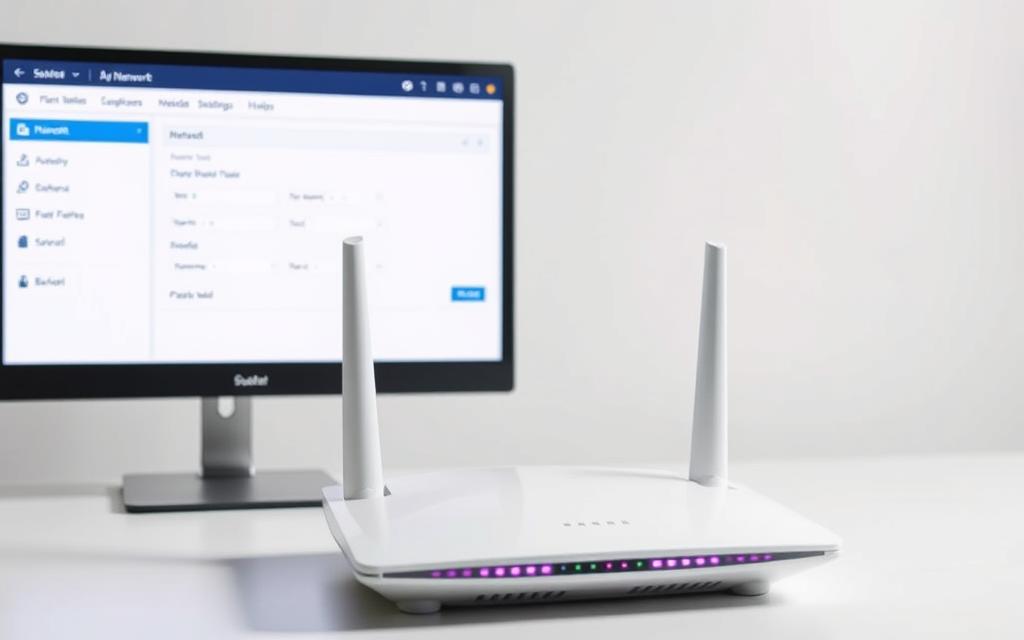
Your router is the heart of your network, holding your WiFi password in its settings. Most routers have a web interface you can reach by typing specific IP addresses in your browser.
Common IP addresses include 192.168.1.1, 192.168.0.1, or 192.168.1.254. You’ll need a username and password to get into these settings. These are usually on a sticker on the router or in the manual.
Once you’re in, look for wireless or security settings to find your password. The layout might vary, but the password is often easy to spot.
Common Router Brand Procedures
Router brands set up their panels differently. Below is a guide to find your WiFi password settings for popular brands.
| Router Brand | Default IP Address | Navigation Path | Password Location |
|---|---|---|---|
| ASUS | 192.168.1.1 | Advanced Settings > Wireless | WPA-PSK Key field |
| Netgear | 192.168.1.1 | Advanced > Setup > Wireless Setup | Password/Passphrase field |
| TP-Link | 192.168.0.1 | Wireless > Wireless Security | Wireless Password field |
| Linksys | 192.168.1.1 | Wireless > Wireless Security | Passphrase field |
| D-Link | 192.168.0.1 | Setup > Wireless Settings | Pre-Shared Key field |
Mobile Device Synchronisation Methods
Smartphones and tablets that have connected to your WiFi store the password. iOS and Android have different ways to find these passwords.
For iOS, use iCloud Keychain to find WiFi passwords. Enable Keychain in iCloud settings. Then, on a Mac with the same Apple ID, open Keychain Access, search for your network, and click “Show password” after authenticating.
Android devices need root access to see saved WiFi passwords directly. But, some apps and manufacturer-specific methods can find the password without root, with caution.
These mobile methods work best if your devices have connected to the network before. This way, they can sync the password across your devices.
Troubleshooting Common Password Access Issues
Users might face problems when trying to see their network passwords. This part covers the usual issues and offers ways to solve them.

Permission Denied Errors and Solutions
Having admin rights is key to accessing system info. If you get a permission error, check if you’re logged in as an admin.
On Windows, right-click apps and choose “Run as administrator.” For macOS, turn on System Integrity Protection exceptions. Linux users need to use sudo before commands for admin access.
When Passwords Don’t Appear in Clear Text
Security settings might hide passwords for safety. The wifi password not showing clearly is often due to hidden characters.
Most systems have a box to show hidden passwords. Look for “Show characters” or “Display password” in network settings. Tools like WirelessKeyView can help on Windows.
Recovery Options for Forgotten Passwords
If you can’t access your password, don’t worry. There are ways to get back in.
Accessing your router physically is the simplest way. Find the reset button on the back. Press it for 10-15 seconds with a paperclip to reset to default settings.
Network admins can recover forgotten password through management tools. Cloud-synced devices might have saved your password in recovery options.
| Issue Type | Primary Solution | Alternative Approach | Time Required |
|---|---|---|---|
| Permission Errors | Administrator Account Access | Command Line Overrides | 2-5 minutes |
| Hidden Passwords | Show Characters Option | Third-Party Software | 3-7 minutes |
| Forgotten Credentials | Router Reset | Network Administrator | 10-15 minutes |
Write down new passwords right after resetting. Think about using a password manager for safe storage and easy access later.
Conclusion
We’ve looked at many ways to check your network password on different systems. This includes Windows, macOS, Linux, and through router settings. It’s key to know your password to keep your wifi safe and fix connection problems.
This guide helps you manage your network passwords with ease. Whether you’re reconnecting devices or boosting security, you’re covered. Each method ensures you get the info you need while following best practices.
Now you have the tools to handle password tasks and protect your digital space. Use these strategies to keep your network safe and reliable.
FAQ
What is a network password and why is it important?
A network password, or Pre-Shared Key (PSK), is key to connect to a wireless network. It keeps your data safe by only letting authorised users in. Knowing your password helps add devices, fix connection problems, and keep your network secure.
Which network security protocols are commonly used, and which should I prioritise?
You’ll find WEP, WPA2, and WPA3 protocols. WPA3 is best because it’s more secure. If you can’t use WPA3, WPA2 is a good backup.
Do I need administrator privileges to check my Wi-Fi password on a computer?
Yes, you need admin rights to see your Wi-Fi password. This is because it’s sensitive info. Regular users can’t access it for security.
How can I verify if my computer is connected to the network whose password I want to retrieve?
Check your connection by looking at the network icon. You can also go to your network settings. Make sure you’re connected or have been before.
What are the main methods to find a Wi-Fi password on Windows 10 and Windows 11?
On Windows 10, use the Network and Sharing Centre or Command Prompt. Windows 11 makes it easier in the Settings app. Both need admin access and are straightforward.
How do I retrieve a Wi-Fi password on a macOS system?
Use Keychain Access to find your password. Search for your network, select it, and check “Show password.” For a command-line option, try Terminal with `security`.
Are there graphical and command-line options for retrieving Wi-Fi passwords on Linux?
A> Yes, Linux with GNOME has a graphical way through Network Manager. For the command line, different Linux versions have their own methods. This makes it easy for everyone.
Can I find my Wi-Fi password through my router’s administration panel?
Absolutely. Go to your router’s web page to see your Wi-Fi settings. The steps vary by brand, so check your manual if needed.
What should I do if I encounter a “Permission Denied” error when trying to view the password?
This error means you don’t have enough rights. Log in as an admin and try again. If it doesn’t work, adjust your user settings or use an elevated command prompt.
Why might my password appear as dots or not show in clear text, and how can I reveal it?
It’s a security feature to hide your password. Look for a “Show characters” or “Reveal password” option. Checking it will show your password.
What are my options if I cannot retrieve my Wi-Fi password through any of these methods?
If all else fails, reset your router. This will erase all settings, including your password. You’ll need to set up your network again.
Is it possible to find saved Wi-Fi passwords on mobile devices like iOS or Android?
Yes, you can see saved Wi-Fi passwords on iOS and Android. The steps depend on your device and OS version. You might need to use settings or sync features.


 By
By