
What Do I Need to Upgrade on My Gaming PC: A Complete Guide
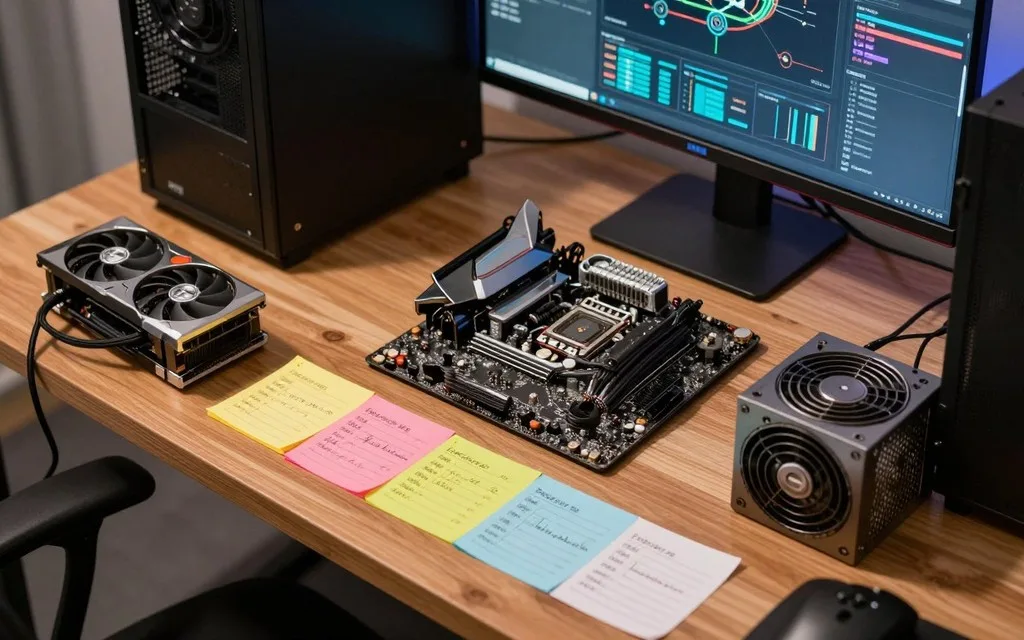
A game that stutters, loads slowly or runs at a disappointing frame rate does not automatically mean the whole PC needs replacing. On a gaming PC, those symptoms point to different problems: stuttering can come from memory pressure, slow loading may come from an HDD, low frame rates can involve the GPU or CPU, and overheating can cause throttling. A bottleneck is the component or limit that holds back the performance of the rest of the system.
The right upgrade depends on the games you play, your target resolution and your budget. With a few checks, you can narrow down the cause, confirm that a replacement will work with your existing parts, and avoid spending money on hardware that will not improve your experience.
Key Takeaways
- Identify the part connected to the problem before buying hardware.
- Compare symptoms with real system use while a game is running.
- Check motherboard, PSU, case and cable compatibility before ordering parts.
- Choose upgrades for your target resolution, games and budget.
- Replace only the parts needed to solve the measured limitation.
The best first step is to identify what is actually limiting the games you play.
How Can You Find the Part That’s Holding Performance Back?
Before buying anything, write down the exact CPU, GPU, memory and drive models in the current system. Exact details matter because two computers with the same brand name can use different components.
Match the symptom to what the hardware is doing during play. Task Manager gives you a quick inventory, while monitoring use during a game helps show whether the graphics card, CPU or memory is under pressure.
Check the installed parts and connections
Press Ctrl+Shift+Esc to open Task Manager, then select the Performance tab. It shows the processor, memory, graphics card and drives. To find the motherboard model, open dxdiag and read the System tab.
Record these six details before comparing parts:
- CPU model and speed.
- Motherboard model.
- GPU model and available display connections.
- RAM type, total capacity and number of modules.
- Storage drive models and whether each is an SSD or HDD.
- PSU label details, plus the power cables connected to the graphics card.
A boutique prebuilt often uses standard retail parts. HP, Dell, Alienware, Lenovo and Acer systems may instead have proprietary boards or power supplies, or a locked BIOS. That can limit which hardware fits or works.
Match symptoms to what the PC is doing
Watch component use while playing the game that causes trouble. High GPU use alongside disappointing frame rates can point to a graphics limit. A heavily loaded CPU, especially with low GPU use, can point to a CPU limit. Memory near capacity while several apps are open can help explain stuttering.
A benchmark is most useful when you compare the same PC before and after a change.
Benchmarks can also compare systems, but different settings and test conditions make those comparisons less direct. A free online PC upgrade checker can help shortlist compatible parts, but it cannot replace checking the motherboard model and PSU label yourself. A gaming PC upgrade checker is only as reliable as the system details you enter.
Before you open the computer, shut it down and unplug it. Photograph the PSU label and internal cable layout before removing or replacing anything.
What Do I Need to Upgrade on My Gaming PC First?
Start with the component that matches the problem, not the part with the most impressive specifications. One targeted upgrade can improve gaming performance without forcing you to replace working components.
Upgrade only the parts that solve an identified limit. Use the symptom, the game’s demands and your target frame rate to choose what to check first.
| Symptom | What to check | First upgrade to consider |
|---|---|---|
| Low frame rates at high graphics settings | GPU usage and settings | Graphics card |
| Low frame rates at low settings or CPU-heavy gameplay | CPU usage and game type | CPU only if the board supports it |
| Stuttering with several apps open | Memory use and channel configuration | RAM |
Upgrading the graphics card is often the clearest move when the GPU limits performance at your chosen settings. A CPU-bound game needs a different fix, and insufficient RAM can cause stutters that a stronger graphics card will not solve.
Resolution changes the workload. At 1080p, a game can be limited by the CPU, especially when you aim for high frame rates. A top-end CPU and graphics card are not necessary for every 1080p setup.
At 1440p or 4K, the graphics card handles more work, so higher-end graphics hardware can matter more. The game itself still counts: a strategy game with many simulated units can stress the CPU, while a visually demanding game may lean harder on the GPU.
To answer what you should upgrade on your PC first for gaming, use the component tied to your measured limit. To get better FPS, first check whether the GPU, CPU or memory is holding back the games and settings you actually use.
Write down the resolution you want and a realistic frame-rate goal. That gives you a way to compare the cost of an upgrade with the performance you expect.
Set a target resolution and frame rate before choosing how much performance to buy.
Does Your Graphics Card Need a Power Supply Upgrade?
A new graphics card can be compatible with the motherboard and still be a poor fit for the PSU or case. Check all three: PSU capacity, power connectors and physical clearance.
Use the card maker’s system-power recommendation as a starting check, not a guarantee for every partner card. Partner designs can vary in size and power draw.

Check wattage and power cables
Nvidia’s RTX 50-series is its latest graphics generation, including the RTX 5090, RTX 5080 and RTX 5070 Ti. Listed system-power recommendations are 550 W for the RTX 5060, 600 W for the RTX 5060 Ti, 650 W for the RTX 5070, 750 W for the RTX 5070 Ti and 850 W for the RTX 5080.
Their listed graphics power is 145 W, 180 W, 250 W, 300 W and 360 W, in that same model order. The RTX 5060 and RTX 5060 Ti list one 8-pin connector or a 300 W-or-higher PCIe Gen 5 cable. The RTX 5070 and RTX 5070 Ti list two 8-pin connectors through an adapter or a 300 W-or-higher cable.
The RTX 5080 lists three 8-pin connectors through an adapter or a 450 W-or-higher cable. The Radeon RX 9070 XT lists a 750 W system-power recommendation, 304 W graphics power and two 8-pin connectors. The Radeon RX 9070 XT and RX 9070 each have 16 GB of VRAM.
Confirm case clearance and graphics-card fit
A PC upgrade calculator can estimate PSU needs, but you still need the exact card model, PSU label and cable layout. Check these four things before ordering:
- The graphics card’s system-power recommendation.
- The available independent PCIe power leads.
- The card’s length and width, including its thickness.
- Room for the power cable to bend beside the card.
Many current mid-range cards are 2-2.5 slots thick. Allow 15-20 mm for a card power cable to bend, since a tight bend can interfere with the side panel or put strain on the connector.
Partner cards based on the same GPU can have different coolers, dimensions and power demands. Check the exact model’s measurements against the case interior, not just the product family name.
Do not power a high-draw card through a cable arrangement that fails to meet its connection requirements.
How Much RAM Does a Gaming PC Need?
For most gamers, 32 GB is the comfortable target, while a well-configured 16 GB system can still deliver similar average frame rates. More capacity helps when the current system runs short, not simply because the number is larger.
In 2026, 16 GB is the minimum recommended amount for modern gaming, and 32 GB is a comfortable target. Extra RAM does not automatically raise average FPS when your games and background apps already fit.
Choose capacity for gaming and multitasking
When memory limits are reached, 32 GB can help avoid stutters and improve 1% lows, the frame rates that capture slower moments in play. Tests have found that 16 GB and 32 GB can deliver nearly identical average FPS when memory is not the limit.
On an older DDR4 platform, moving from 16 GB to 32 GB can offer more real-world benefit than switching to a newer memory standard. DDR5 delivered 1-3% higher average FPS than well-tuned DDR4 in most tested games, a difference within rounding error during everyday play.
For a new 2026 gaming PC, a matched 2×16 GB DDR5-6000 kit with XMP or EXPO enabled is a common recommendation. That is a platform choice, not a reason to replace a working DDR4 system solely for its memory standard.
Match the modules and enable their memory profile
A matched pair enables dual-channel memory, which lets the system use two memory channels. Two 16 GB sticks are preferable to one 32 GB stick for that setup. The paired slots are often slots 2 and 4, but the motherboard manual gives the correct positions.
DDR4 and DDR5 modules are not interchangeable. Your motherboard determines which type fits, and its supported speed can depend on the CPU and board. Check the manual before adding modules, especially when mixing a new kit with existing RAM.
XMP or EXPO may need to be enabled in BIOS for memory to run at its rated profile. Some OEM boards do not expose these settings, so a compatible kit may still run at a lower default speed.
Prices are market snapshots from 2026, not endorsements. A G.Skill Trident Z5 Neo RGB DDR5-6000 C30 32 GB 2×16 GB kit with AMD EXPO was listed at $117.99. DDR5-6000 C30 kits started at $97.97, while a G.Skill Trident Z5 RGB DDR5-6000 C36 32 GB 2×16 GB kit was listed at $199.97.
After installation, confirm the total capacity, operating speed and occupied slots in Task Manager.
Will an SSD Fix Slow Game Loading?
If Windows and games are still on a mechanical hard drive, storage is a strong candidate for a practical upgrade. An SSD can reduce waiting during startup and loading, but it does not fix a graphics-card bottleneck.
Replacing an HDD with an SSD can shorten boot and game-loading waits, but it is not a guaranteed way to raise frame rates. A game limited by the GPU still needs a graphics solution.
An M.2 NVMe SSD is a small drive that connects directly to an M.2 slot. A 2.5-inch SATA SSD uses a cable and a drive bay, much like many older hard drives. A SATA SSD can work well when the motherboard has no M.2 slot.
Some M.2 slots share a connection with a SATA port. Installing an M.2 drive can disable that port, depending on the motherboard. Check the board manual so an existing drive does not unexpectedly disappear from the system.
Capacity matters when your library grows. A 1 TB drive is a practical floor for gaming, while 2 TB suits someone who keeps more games installed. Individual games can take about 100 GB, so a drive can fill faster than its label suggests.
You can clone an existing drive to move Windows and files without reinstalling everything. That process can carry over old clutter or problems. A clean Windows installation starts fresh, but you must reinstall apps and games and restore your files.
Back up important files before cloning or installing Windows cleanly. Confirm that the backup opens before changing drives, and keep the old drive untouched until the new system works as expected.
Check the board’s M.2 and SATA connections before ordering a drive.
When Does a CPU Upgrade Require a New Motherboard?
A faster processor is an upgrade only if the motherboard can recognize it and deliver stable power. Socket fit alone does not confirm support.
A CPU upgrade depends on the socket, BIOS version, cooler capacity and motherboard power delivery. If the board cannot support the processor, the upgrade may require a new motherboard too.

Check the CPU socket, BIOS and board limits
AM4, AM5, LGA1700 and LGA1851 are examples of platform names. A CPU must match the board’s socket and appear on its supported-CPU list. The needed BIOS version matters too, since an older BIOS may not recognize a newer processor.
Retail motherboard makers publish CPU support lists and BIOS details for each board model. A big-brand prebuilt can have narrower BIOS support, even when the board uses a familiar platform. Look up the exact model rather than relying on a general socket match.
A gaming-focused Ryzen 7 9800X3D appears in a system with an RTX 5070 Ti, 32 GB DDR5-6400 and a 1 TB PCIe 5.0 SSD. That configuration is an example of a current gaming-focused platform, not a required build for every player.
Treat heat and airflow as part of the upgrade
Heat can reduce performance before a CPU has failed or become outdated. Clean dust from the cooler and vents, check that the fans spin, and renew degraded thermal paste before buying another cooler.
A new cooler must fit the socket and the case, and it must handle the processor’s heat output. Adding a case fan helps only when the case has a suitable mount and a clear airflow path. A fan without an open path may add noise without improving cooling.
Check temperatures while the computer runs a demanding game. If the CPU slows as temperatures rise, cooling deserves attention; if it stays cool but remains heavily loaded, a stronger supported CPU may help.
Check the exact motherboard model’s supported-CPU list before buying a processor.
Can My PC Run Windows 11 After an Upgrade?
A graphics or memory upgrade alone does not establish Windows 11 eligibility; the PC must meet every system requirement. Check the complete system, including firmware and security features.
Windows 11 requires all of the following hardware and firmware conditions:
- A compatible 64-bit CPU at 1 GHz or faster, with 2 or more cores.
- At least 4 GB of RAM.
- At least 64 GB of storage.
- UEFI firmware that is Secure Boot capable.
- TPM 2.0.
- DirectX 12-or-later graphics with a WDDM 2.0 driver.
Most PCs shipped in the last five years can run Windows 11. A compatible TPM may be present but disabled in UEFI BIOS. Retail custom-build motherboards often have TPM available but turned off by default.
The setting may appear as AMD fTPM or Intel PTT in UEFI. A graphics or RAM change cannot replace an unsupported processor or missing firmware feature, so check each requirement separately.
Run PC Health Check after changing hardware to see whether the computer qualifies. Windows Update can take up to 24 hours to refresh eligibility information after a change, so the result may not update right away.
Windows 10 support ended October 14, 2025. After that date, free Windows Update software updates, technical assistance and security fixes ended for Windows 10.
Check the TPM setting in UEFI before assuming the motherboard needs replacement.
Should You Upgrade or Rebuild the PC?
Keep upgrading when one compatible part solves the problem; reconsider when several core components need replacement together. Compare total cost with a new system that meets the same goal.
Consider a rebuild when needed upgrades cost more than about half the price of a comparable new system. Replacing the motherboard, CPU and PSU together is a strong signal to compare full-system costs.
| Situation | Practical choice | What can carry over |
|---|---|---|
| One part is limiting and compatible | Upgrade that part | Working case, PSU and drives |
| Motherboard, CPU and PSU all need replacement | Rebuild | Compatible GPU, memory and drives |
| Upgrade costs exceed about half a comparable new system | Compare a rebuild seriously | Reusable parts that pass compatibility checks |
Compare the cost and parts you can keep
These are decision rules, not guarantees. A case, drive or graphics card may carry over only if it fits and works with the replacement parts. Proprietary cases and connectors can restrict reuse, especially in some branded prebuilts.
Compare the final cost of the needed parts with a system that meets the same gaming goal. Include the case, cooling and any small parts the upgrade needs. A low component price can grow once the rest of the system needs work.
Install carefully and test the result
Use this order to prepare and complete the work:
- Back up important data.
- Update the BIOS before a CPU or memory change if needed.
- Shut down the computer and unplug it.
- Photograph connections before disconnecting cables.
- Install and seat components without force.
- Install drivers, then test temperatures and stability.
Never force a component into a slot or connector. A part that does not seat easily may be misaligned or incompatible.
Give the new hardware a simple test before you close the case. Watch for unexpected fan noise, crashes or temperatures that rise sharply under load.
Run a familiar game after the upgrade and check stability, fan behavior and temperatures before closing the case.
Conclusion
A focused upgrade can extend a gaming PC’s useful life when it addresses the part that is actually holding it back. The best value comes from fixing a measured limitation, not replacing hardware just because a newer model exists.
Before comparing compatible options, record the CPU, GPU, RAM, motherboard and PSU details. Keep the goal specific: smoother play in one game, shorter loading waits, or a higher resolution. That makes it easier to judge whether a part fits both the system and the budget.
Write down your system specifications and the game or resolution you want to improve before choosing a part.
FAQ
Is 32GB RAM overkill for a gaming PC?
No, 32 GB is a reasonable amount for modern gaming alongside background apps, though it will not always increase average frame rates. Whether it helps depends on the games you play and how much memory your computer uses. If your current 16 GB setup stays well below its limit, extra capacity may make little visible difference. If memory pressure causes stutters, 32 GB can help.
Is $700 enough for a gaming PC?
Yes, $700 can suit an entry-level, 1080p-focused gaming tower when component choices and current prices align. The available budget has to cover a balanced CPU, graphics card, storage, memory and PSU, so avoid spending too much on one part. Set aside separate money for a monitor, keyboard, mouse and headset if you still need them.
What should I upgrade first on my gaming PC?
Upgrade the part tied to the problem: the graphics card for graphics-limited frame rates, RAM for memory-related stutter, or an SSD for slow loading. A CPU upgrade makes sense when the processor limits the game and the motherboard supports a suitable replacement. Check the system while playing before you decide; the most expensive component is not always the one holding back performance.
Is a $600 gaming PC worth it?
It can be worth $600 if the exact CPU, GPU, storage and PSU suit the games you want to play. Check whether the system uses standard parts and whether its PSU can support future changes. Also find out whether the price includes a monitor or other peripherals. A tower-only price and a complete setup price are not directly comparable.
Is a 7 year old PC still good?
Yes, a seven-year-old PC can remain useful if it runs the games and operating system you need. Check its performance in the games you play, along with the condition of its fans, storage and PSU. Windows 11 eligibility also matters if you need a supported operating system. A single compatible upgrade may keep an older computer useful longer.
Is a $500 gaming PC worth it?
It may be worth $500 for basic gaming, especially if a used system has a capable GPU and a sound PSU. Check the exact parts, the computer’s condition and whether it uses standard components. Older PCs can have limited upgrade options or worn storage. Confirm whether the price includes a monitor, since peripherals can change the value considerably.
How long will a $1000 gaming PC last?
A typical rule of thumb is about 4-6 years before a major performance upgrade, but resolution and game demands affect that span. A system aimed at 1080p may remain comfortable longer than one expected to run demanding new games at higher settings. You may also upgrade one component during that period rather than replace the entire PC.
Is it still a good idea to buy a PC in 2026?
Yes, buying a PC in 2026 makes sense when a new system fits your games, preferred resolution and operating-system needs better than upgrading your current computer. Compare the cost of the new system with the parts you would need to replace. Check that the chosen configuration has compatible hardware and enough storage for the games you plan to keep installed.
If you want to dig further into how to check network password on your compute, read our How to Check Network Password on Your Compute guide.
If you want to dig further into pros and cons of computer networks advantages, read our Pros and Cons of Computer Networks Advantages guide.
If you want to dig further into what is access point in computer network wire, read our What Is Access Point in Computer Network Wire guide.
Leave a Reply